
- File
-
Designs
-
-
All categories -
Category #1 - New Category
-
My designs
-
- Share
-
Help
-
Quick help
- ctrl+a
Select all objects
ctrl+d Double the activate object
ctrl+e Clear all objects
ctrl+s Save current stage to my design
ctrl+o Open a file to import design
ctrl+p Print
ctrl++ Zoom out
ctrl+- Zoom in
ctrl+0 Reset zoom
ctrl+z Undo changes
ctrl+shift+z Redo changes
ctrl+shift+s Download current design
delete Delete the activate object
← Move the activate object to left
↑ Move the activate object to top
→ Move the activate object to right
↓ Move the activate object to bottom
shift+← Move the activate object to left 10px
shift+↑ Move the activate object to top 10px
shift+→ Move the activate object to right 10px
shift+↓ Move the activate object to bottom 10px - ⭐ WELCOME TO THE UNUSUAL CRAFTSMAN DESIGNER
📁 1. UPLOADING YOUR IMAGE
Supported file types: JPG, PNG, SVG
Recommended quality: 1000×1000 pixels or higher, bright, clear, high contrast
How to upload:
• Click the Upload tab
• Select your image
• Drag corners to resize
• Drag to move
• Use the rotation handle
🎨 2. CLIPART, SHAPES, DRAWING TOOL, DISTRESS TOOL
Clipart:
• Click Cliparts on the left side
• Choose free symbols, icons, borders, frames, animals, decorative elements
Shapes:
• Click Shapes to add squares, circles, banners, arrows, lines
Drawing Tool:
• Click Draw to create freehand lines or signatures
Distress Tool:
• Click Distress to add a worn or vintage engraving texture
✍️ 3. ADDING AND EDITING TEXT
• Click Text → Add Text
• Customize font, size, bold, italic, spacing, rotation, alignment
• Engraving tips: Medium or bold fonts engrave best, avoid thin fonts, use 14px or larger
🎛 4. MOVING, RESIZING, ROTATING, AND LAYERS
• Move: Click and drag
• Resize: Drag corner handles
• Rotate: Use the rotation handle
Layers Panel:
• Reorder items (front or back)
• Lock items
• Hide or show items
• Delete items
🪚 5. CHOOSING YOUR PLAQUE SIZE
Available sizes:
• 6.75 inch × 6.75 inch
• 10 inch × 10 inch (optional upgrade)
The design area updates automatically when changing size
✒ 6. OPTIONAL BACK ENGRAVING
• Enter your personalized back engraving message in the product options
🎚 7. BLACK AND WHITE PREVIEW MODE
What it does:
• Shows contrast
• Simulates engraving appearance
• Helps identify dark or light areas
What it does NOT do:
• Does not change your original image
• Does not change your saved design
• Does not affect the final engraving file
💾 8. SAVING YOUR DESIGN (MY DESIGNS)
• Click Save
• Choose Save to My Designs
• Log in if needed
• Reload or edit saved designs anytime
📤 9. SHARING YOUR DESIGN
You can share your design through:
• Facebook
• Pinterest
• Twitter
• Direct link
🧮 10. QUANTITY AND BULK DISCOUNTS
• 1 plaque
• 2–4 plaques (discount applied)
• 5+ plaques (larger discount)
Discounts apply automatically when selecting quantities
🔍 11. WHY THE IMAGE LOOKS BLURRY WHEN ZOOMED
• The preview is low resolution so the designer stays fast
• Your final engraving uses your full-quality original image
🛒 12. AFTER YOU PLACE YOUR ORDER
• We receive your design
• We inspect it for engraving quality
• We adjust alignment if needed
• We engrave your plaque exactly as designed
• Hand-finished, sealed, and shipped from Long Island, NY
🧩 13. TROUBLESHOOTING
• Image too large: Resize using corner handles
• Cannot move an object: Click once, then drag
• Image will not upload: Use JPG or PNG under 25 MB
• Black/White preview looks harsh: It is only a simulation; wood grain affects final appearance
📞 NEED HELP?
• Contact us anytime for assistance
Lumise Designer Help
Why does my image look blurry when I zoom in?
The designer uses a reduced-quality preview so it stays fast and responsive. Your final print or engraving always uses your original full-resolution image.
What kind of image should I upload?
For best results, use a clear, bright, high-resolution image (at least 1000×1000 pixels). High-contrast or black-and-white artwork works best for engraving.
How do I move or resize items?
Click any text or image once to select it. Drag the corners to resize, drag the object to move it, and use the rotate handle to rotate. Keep everything inside the plaque area for best results.
What file types can I upload?
You can upload JPG, PNG, and SVG files. SVG gives the cleanest, sharpest lines for engraving.
What does the “Black & White Preview” do?
It simulates how your design might look when engraved in black and white. It does not change your original image or file.
What happens after I complete my design and place an order?
Once you check out, we review your design, make sure it will engrave well, and then produce your plaque as close as possible to what you see on screen. If something needs attention, we will contact you.
© 2025 The Unusual Craftsman — All Rights Reserved.
Handcrafted on Long Island, NYPowered by Lumise version 2.0.6
-
- Shop
- Undo
- Redo
- 0.0
-
My cart
- Back To Shop
- Design
- Product
- Images
- Text
- Shapes
- Layers
- Templates
- Cliparts
- Drawing
- Distress
Click or drag to add text
Free drawing mode
-
Start designing by adding objects from the left side
- All selected objects are grouped | Ungroup?
- Group objects Group the position of selected objects
-
-
Fill options
-
- Create QRCode
-
Options
-
Automatically align the position of <br>the active object with other objects -
ON: Keep all current objects and append the template into OFF: Clear all objects before installing the template -
Replace the selected image object instead of creating a new one -
Select the way how the background image addon display
-
- Replace image
- Crop
-
Mask
-
Select mask layer
-
-
Remove background
-
Remove background
-
Deep:
-
Mode:
-
-
Filters
-
Filters
-
- Original
- B&W
- Satya
- Doris
- Sanna
- Vintage
- Gordon
- Carl
- Shaan
- Tonny
- Peter
- Greg
- Josh
- Karen
- Melissa
- Salomon
- Sophia
- Adrian
- Roxy
- Singe
- Borg
- Ventura
- Andy
- Vivid
- Purple
- Thresh
- Aqua
- Edge wood
- Aladin
- Amber
- Anne
- Doug
- Earl
- Kevin
- Polak
- Stan
-
Brightness:
-
Saturation:
-
Contrast:
-
- Clear Filters
- Click then drag the mouse to start drawing. Ctrl+Z = undo, Ctrl+Shift+Z = redo
- QRCode text
-
Fill options
-
Fill options
-
Transparent:
-
Stroke width:
-
Stroke color:
-
- Ungroup position
-
Arrange layers
-
Position
-
Object position
Lock object position:
-
Center vertical
-
Top left
-
Top center
-
Top right
-
Center Horizontal
-
Middle left
-
Middle center
-
Middle right
- Press ← ↑ → ↓ to move 1 px, <br>Hit simultaneously SHIFT key to move 10px
-
Bottom left
-
Bottom center
-
Bottom right
-
-
Transforms
-
Rotate:
-
Skew X:
-
Skew Y:
-
Flip X:
Flip Y:
Free transform by press SHIFT+⤡
-
-
Font family
-
Edit text
-
Edit text
-
-
Font size:
-
Letter spacing
-
Line height
-
-
Text Effects
-
Text Effects
-
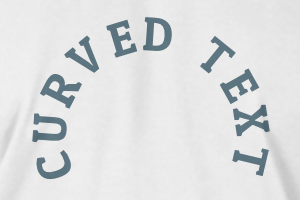
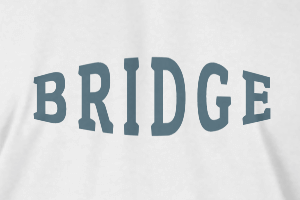
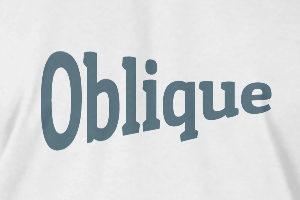
-
Radius
-
Spacing
-
Curve
-
Height
-
Offset
-
Trident
-
-
Text align
- Uppercase / Lowercase
- Font weight bold
- Text style italic
- Text underline
Please select a product to start designing